Steps in allowing Outlook
Express to show attachments...
1. Start Outlook Express.
2. On the Tools menu, click Options.
3. Click the Security tab,
4. Click to clear the Do not allow attachments to be saved or opened...
5. Click OK.
On a side note, a way to help protect yourself from email viruses
infecting your computer if you use Outlook Express is to disable the Preview
Pane. There are certain viruses that will infect a computer even if you just
preview the message.
To disable the preview
pane in Outlook Express:
1. Start Outlook Express
2. Click on View, Layout
3. Uncheck the Show Preview Pane and click OK.
If you have
Windows Live Mail email:
1. Open Windows Mail.
2. Click the Tools menu, and then click Options, (or at the Menu button,
select Safety Options)
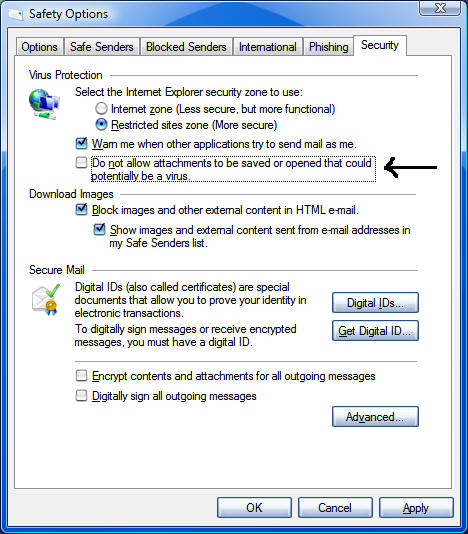
3. Click the Security tab,
4. Clear the Do not allow attachments to be saved or opened...
5. Click OK.
NOTE: If at any time you suspect a
virus, go to
http://housecall.trendmicro.com to do an online virus scan.
If you are unable to do any of the above steps, reboot, keep pressing F8
- but don't hold after it reboots, pick Safe Mode with Networking
from the menu and try from there.

 contact: